
Use your existing webcam
Scan with a standard camera instead of purchasing a dedicated hardware reader.

 SOFTWARE FOR WINDOWS
Scan barcodes directly into Excel, inventory systems, forms and virtually any other Windows application. No dedicated hardware scanner required.
 Keyboard-wedge output
1D & 2D barcodes
Standard web cameras
Keyboard-wedge output
1D & 2D barcodes
Standard web cameras
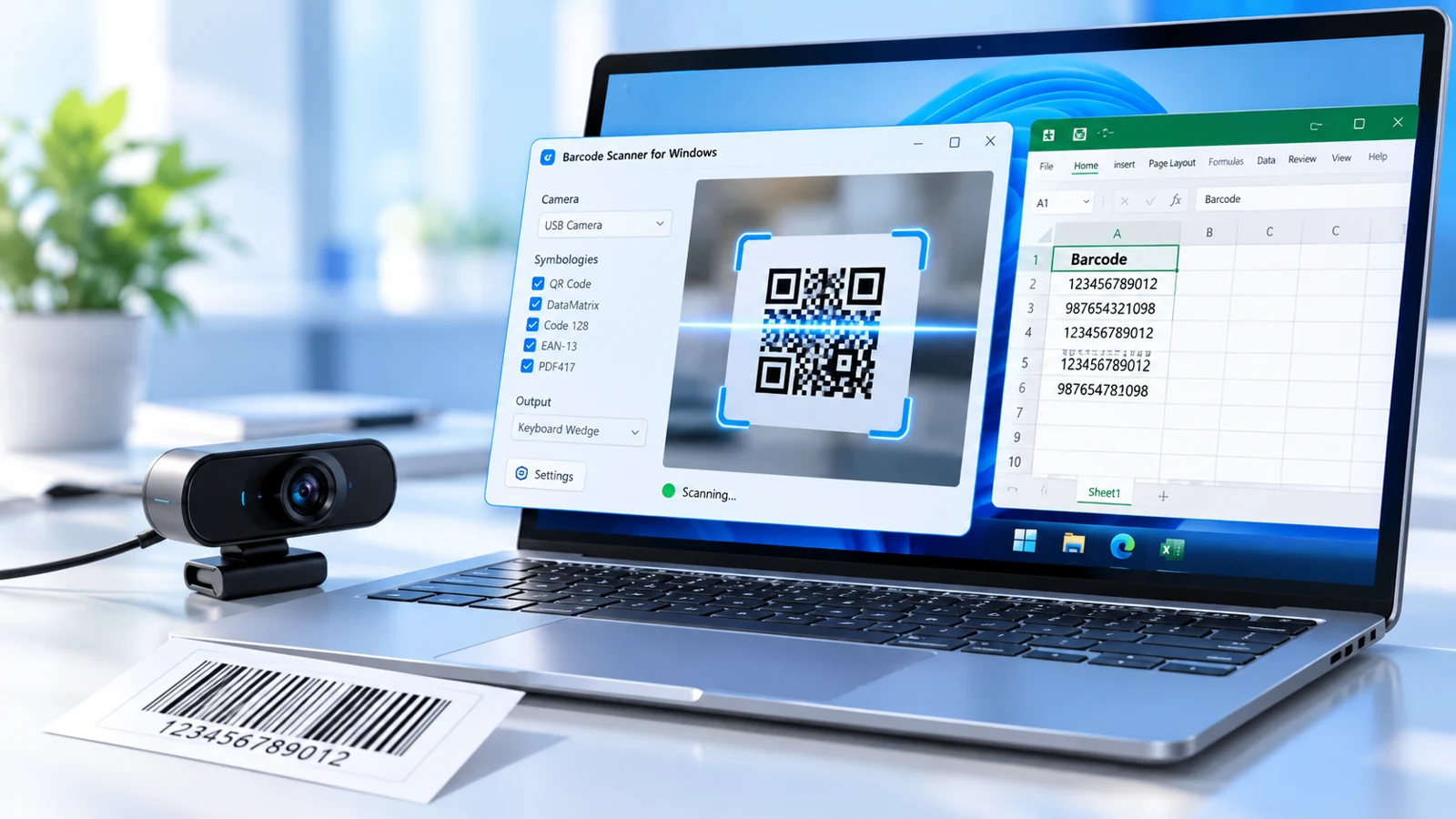 Any webcamBuilt-in or USB cameras
 Any Windows appWorks like keyboard input
 1D & 2D supportQR, DataMatrix, Code 128 & more
 Automation readyCOM-based integration
Use a regular camera to enter barcode values wherever your cursor is active—no changes to your existing Windows workflow.
Select a built-in or USB webcam. The scanner detects available camera devices.
Scan common linear and 2D codes from labels, packaging, screens and documents.
Decoded text appears in the active field—just like it was typed on your keyboard.
 Keyboard-wedge input
Flexible settings help the scanner fit into existing desktop workflows—from a single PC to custom business software.
Scan with a standard camera instead of purchasing a dedicated hardware reader.
Keyboard-wedge mode transfers decoded values to the focused text field.

Add prefixes and suffixes such as Enter or Tab to streamline data entry.
Decode Code 128, EAN, UPC, QR Code, DataMatrix, PDF417, Aztec and more.

Use autofocus or manual focus, with zoom and exposure controls where supported.
Access scanned barcode data from other applications using COM integration.
Watch real DataSymbol demonstrations, including Python integration, scanning with tablets and multiple cameras, and barcode entry into spreadsheets.
Actual screenshots of the program and its settings. Click any image to see it at its original resolution.
Choose the symbologies you need, customize scanned text and control how data moves into your workflow.
Explore advanced featuresPractical examples for integrating the Windows Barcode Scanner with Python, Excel and other applications.
All Technical QuestionsUse the application's COM Automation interface and the BarcodeScanner.Reader object. With pywin32, you can listen for its OnBarcodeIn event and process each decoded value:
import time
import pythoncom
from win32com.client import DispatchWithEvents

class BarcodeEvents:
    def OnBarcodeIn(self, value):
        print("Scanned:", value)

scanner = DispatchWithEvents("BarcodeScanner.Reader", BarcodeEvents)
scanner.Visible = True

while True:
    pythoncom.PumpWaitingMessages()
    time.sleep(0.2)
Requires the Windows Barcode Scanner application and the pywin32 package. This example is adapted from the official technical FAQ.
Use the Execute Command setting. Specify the program or batch file to run and use #BARCODE# where the decoded text should appear in its arguments.
For example, if the command calls C:\1\b.bat with the barcode as its argument, the batch file can save that value:
@echo off
echo %1 > C:\1\barcode.txt
The original FAQ also shows how a scanned QR code containing a file path can open an Excel workbook via this feature.
Use the application's COM event from Excel VBA. Add the Barcode Scanner library under Tools → References, then open the VBA editor (Alt + F11) and place this example in ThisWorkbook:
Dim WithEvents ScanReader As BarcodeScannerLib.Reader

Private Sub Workbook_Open()
    Set ScanReader = CreateObject("BarcodeScanner.Reader")
    ScanReader.Visible = True
End Sub

Private Sub ScanReader_BarcodeIn(ByVal barcode As String)
    ActiveCell.Value = barcode
    ActiveCell.Offset(1, 0).Select
End Sub
When a barcode is decoded, its value goes into the active cell and Excel moves to the next row. Disable Transfer Barcode in keyboard under the scanner's Program settings to avoid duplicate keyboard input.
Yes. The scanner's Find what setting supports regular-expression replacement. The source FAQ demonstrates finding control characters with hexadecimal values 1E or 1D, as well as text such as r or hello, and replacing matches with #.
For the exact expression and settings screenshot, see the Windows Barcode Scanner technical FAQ.
Try the software with your own camera and barcode labels.